
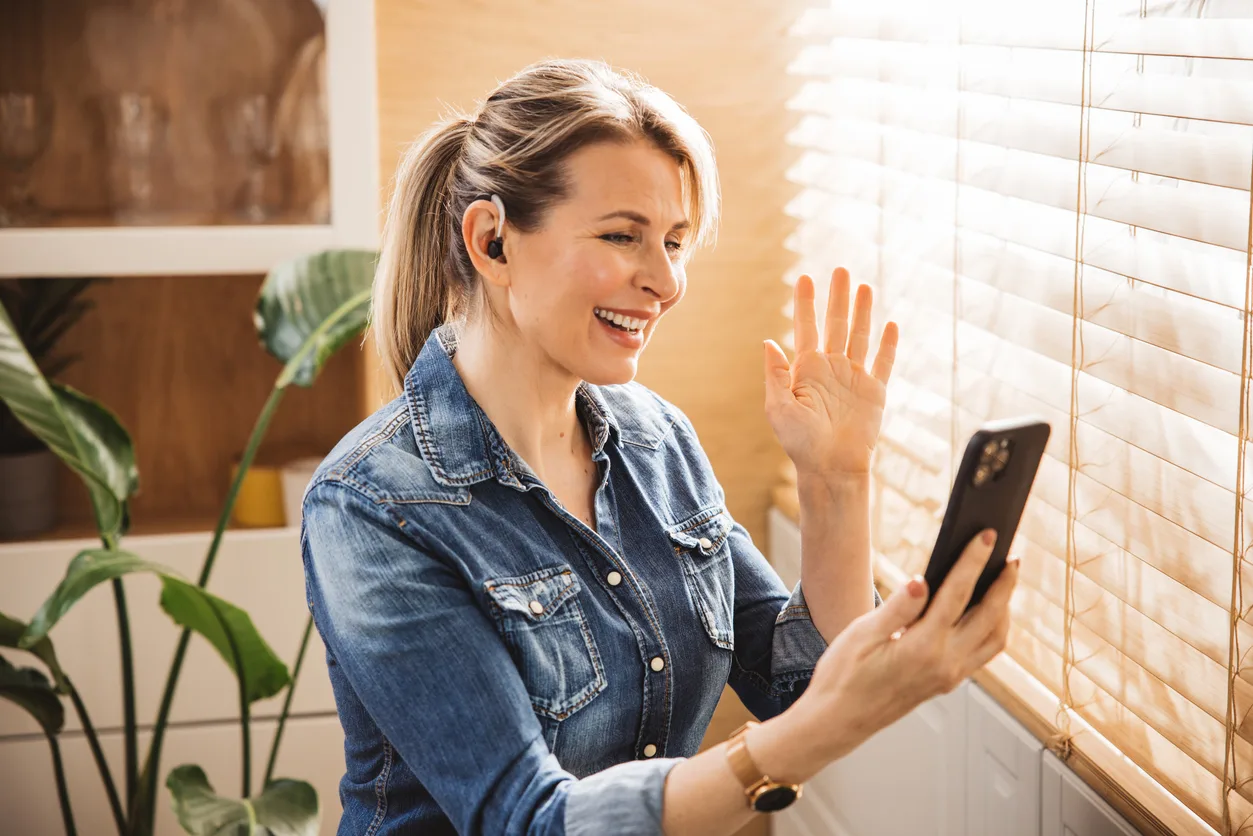
Learn how to troubleshoot and effectively connect your Android or iPhone to Your Hearing Aids via Bluetooth. Read more.
Want to watch along? Check out these short, detailed videos from Hearing Solution’s very own Hailey Dotson, BS, HIS, as she helps you troubleshoot and pair Bluetooth-enabled hearing aids to iPhone and Android smartphones.
Android: https://www.youtube.com/watch?v=Zj6-EiugQSc
iPhone: https://youtu.be/0OqZdGRIRPE?is=ouoTjROofFHP7vZv
One of the most convenient features of modern hearing aids is their ability to connect to Bluetooth, allowing users to send audio from phone calls, music streaming, TV, and other Bluetooth-enabled devices directly to their technology.
However, this technology can be finicky, and Bluetooth issues with hearing aids are quite common.
In order to help you have better, more consistent experiences with your Bluetooth-enabled hearing aids, we’ve created a quick and easy guide for troubleshooting and connecting them to your iPhone or Android smartphone.
Bluetooth Issues: Connecting Your Hearing Aids to Your iPhone
Does the Bluetooth connection on your iPhone ever randomly stop working? Sometimes, it’s after getting them cleaned or repaired, or maybe you’ve gotten a new iPhone. Often, it’s out of the blue, and nothing seems to fix it, even if your app says everything is working.
We call it “ghosting,” and while it’s frustrating, it’s pretty easy to fix when you have the right information. Just follow these simple steps, and you’ll be just fine*.
Step 1: Turn off your hearing aids
Press and hold the bottom button for 5–10 seconds. Turning your hearing aids off disconnects them from your iPhone. If necessary, you can also open the battery door, or place them in your charging dock.
Step 2: Go to the Settings app on your iPhone
Find the Settings app on your iPhone — it looks like a gray colored gear — and open the app. After you’ve opened the Settings app, scroll until you find the Accessibility category, click on that, then scroll until you see Hearing Devices. Click on Hearing Devices.
Step 3: Adjust the Hearing Devices settings
After opening the Hearing Devices section, it could look a couple of different ways, depending on the model and operating system of your phone.
Typically, the top bar that says your name and hearing aids will be gray and say “Not Connected.”
Step 4: Turn Audio Handoff
Before making any adjustments, scroll down to where it says “Control Nearby Devices, Audio Handoff, and Hearing Aid Compatibility.” Turn this off.
Step 5: Tell the iPhone to Forget Your Devices
Scroll back up to where it says “Not Connected.” If your hearing aids are listed there but are grayed out, click on “Not Connected.” On the next page, scroll down and click Forget This Device. If you have two hearing aids, it will ask you twice. Do it for both.
Step 6: Turn off Bluetooth
Go all the way back to the main Settings page, open Bluetooth, and turn it off. With newer iPhones — iPhone 14 and above — you can simply turn Bluetooth off, if you’re using an iPhone 13 or older, then you’ll have to turn on Airplane Mode while you’re turning off your phone’s Bluetooth in order for it to fully unpair your hearing aids.
Once that’s done, if you have a hearing aid app and it’s currently open, close the hearing aid apps. We don’t want it running as it will disrupt the pairing process.
Step 7: Turn both hearing aids off
Press and hold the bottom button of each hearing aid to turn them both off.
Step 8: Turn the volume up and down and press & hold the lock button
Next, and this is very important, quickly press Volume Up, then Volume Down, and then press and hold the Side (Lock) Button. Keep holding the button until the white Apple logo appears on the screen.
Step 9: Continue Pairing
Once the logo appears, you can release the button and wait for the phone to restart. When it comes back on, enter your passcode and go back into the Hearing Devices of your iPhone to continue pairing.
Make sure that your hearing aids are no longer listed. If you still see them, repeat the previous steps until they’re no longer there.
If they are gone, do the following.
Go back into Settings, then Accessibility, and then Hearing Devices. Now, manually turn on your devices or remove them from their charging dock and close the battery doors, depending on what type of devices you wear.
Turning your hearing aids back on will activate their Bluetooth.
After turning your hearing aids back on, you should see them pop up on your phone. If you wear two devices, you’ll need to pair twice in your iPhone settings.
Now, go back to the Control Nearby Devices, Audio Handoff, and Hearing Aid Compatibility section. Make sure these are turned off.
If you’re using a hearing aid app, follow its instructions. It may have already paired your devices automatically, or you might need to put them back in the charger and remove them to reconnect. Just follow the instructions in the app, and that should clear everything up for you.
Step 10: Repeat, if needed
If nothing paired, can continue pairing Hearing Aids, repeat steps 1-9 if hearing aids are still connected
It’s pretty simple. It did take me a couple of tries to get the hang of it, and I’ve had to redo the instructions a few times because phones change and things change.
Let us know if this doesn’t work for you and you have an iPhone with hearing aids like Starkey, Oticon, ReSound, or similar brands. Those hearing aids pair in this same section, so you should be able to follow these instructions just fine.
Bluetooth Issues: Connecting Your Hearing Aids to Your Android
Step 1: Turn off your hearing aids
Press and hold the bottom button for 5–10 seconds. Turning your hearing aids off disconnects them from your iPhone. If necessary, you can also open the battery door, or place them in your charging dock.
Step 2: Go to the Settings app on your Android
Find the Settings app on your Android and then go into Connections. Once in Connections, find Bluetooth.
Step 3: Find the Bluetooth settings
Click on the Bluetooth tab and look for an entry that says your name followed by “HA” or something similar. There should be a little gear button next to it. Click that button, and then select “Forget This Hearing Aid” or “Forget This Device.”
Step 4: Unpair your hearing aids from your phone
Sometimes, more than one entry for your hearing aids will be paired with your phone. Remove all of them. Find each gear button and clear every entry.
Even if you have more than one hearing aid paired, you’ll most likely need to disconnect and then reconnect them whenever you want to use that pair. Most hearing aids and phones can’t handle multiple sets of hearing aids at once.
Step 5: Turn off Bluetooth and turn on Airplane Mode
Go back to Connections, and turn off Bluetooth. After you’ve turned off Bluetooth, turn on Airplane Mode.
After you’ve turned off Airplane Mode, close every app on your phone that you have open, especially your hearing aid app.
Step 6: Prepare to turn off your phone
At this point, your hearing aids should be unpaired from your phone, your phone’s Bluetooth should be turned off, and your phone’s Airplane Mode should be turned on. Double-check these settings.
Now, swipe down from the top-right corner of your screen to expand the menu. Press the power button to turn off your phone.
Step 7: Restart your Android phone
When the power menu appears, you’ll see a few different options. You’ll want to select Restart.
Leave the phone alone while it restarts.
Step 8: Make sure your hearing aids have been unpaired
When it comes back on, go back into your settings and make sure there are no hearing aids paired and no hearing aid connections listed in your phone’s Bluetooth settings.
If you still see any hearing aids, repeat this video and follow the steps again until there are no hearing aids listed.
Step 9: Go to the Settings app on your Android
Once the hearing aids have been removed from the Bluetooth menu, open your hearing aid app. That’s where the connection process will begin to pair them with your Android phone.
With most newer Android phones, you won’t have to go to the Settings menu, turn your hearing aids off and on again, and then pair them through the Bluetooth menu. Most hearing aid apps will guide you through the process. However, some Android phone models will require that.
Once you’ve reconnected everything, double-check that the connection is working.
You can play some music or a video and see whether the sound streams through your hearing aids as it’s supposed to.
Step 10: Repeat steps 1-9, if needed
If the connection isn’t working, follow steps 1–9 to try the process again.
Again, technology can be finicky. We didn’t learn the process overnight, either!
Worst-case scenario, give us a call or send us a message! We’ll be happy to help.
We can even provide you an easy-to-read, printed version of these instructions to keep at home if you need them. Contact us to let us know what you need. We’re here to help you hear your very best.
*For Phonak hearing aid users, the process will be a little different.
For some reason Phonak hearing aids aren’t typically found in the Bluetooth section like other hearing aids are. If your Phonak hearing aids are listed in the Hearing Devices section rather than Bluetooth, this is exactly what you’ll do.
You’ll want to start by turning off your hearing aids. Usually, you can press and hold the bottom button for five to ten seconds.
When you go into the Bluetooth menu on your phone, you might see three or four hearing aid entries. That’s okay. Select each hearing aid, tap the little information button, and choose “Disconnect,” “Forget This Device,” or whatever option appears.
Remove all the hearing aid entries from Bluetooth.
You can also delete the MyPhonak app and download it again to reconnect your hearing aids.
After you’ve unpaired your devices, you can follow the instructions as described above.